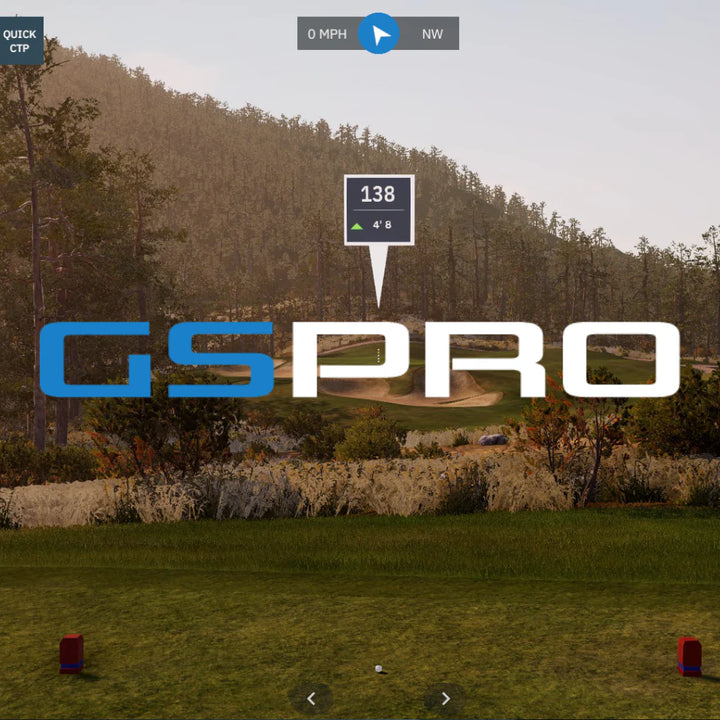
Meet the Square Golf – Home Edition
-
✔Transform your home golf studio with Square Golf. Play realistic 3D courses, get accurate feedback, and enjoy versatile practice modes on mobile and PC.
-
✔Perfect for golfers of all levels, Square Golf brings the full golfing experience to your fingertips using a high-speed 3D vision camera to measure ball & club data.
-
✔Easy to set up — simply turn the device on, log into your Square Golf account, find your device, and start swinging.
On the Range
Instant feedback in a realistic driving range environment. Practice with every club in the bag from Sand Wedge (SW) all the way up to a Driver.
-
✔Ball data points include: Ball Speed, Direction, Angle, Back Spin, Side Spin, Apex, Carry, Run, and Total.
-
✔Computer-generated graphics offer dynamic visual feedback and adjust to your performance in real-time.
-
✔Visualise your shots with multiple camera angles for comprehensive analysis.
Club & Ball Data
Analyse detailed shot data to understand and improve your performance. Access comprehensive metrics for a deeper insight into your club and ball data.
-
✔Ball data points include: Ball Speed, Direction, Angle, Spin Rate, Spin Axis, Apex, Carry, Run, and Total.
-
✔Attach the provided tape to your golf shaft for detailed club metrics to help you refine your technique.
-
✔Club data points include: Swing Path, Face Angle, Dynamic Loft, and Angle of Attack.
Practice Hole
-
✔Play from a range of distances to practice both short pitches and longer approach shots.
-
✔Adjust the green speed from fast to slow, allowing you to simulate different course conditions.
-
✔Enjoy dynamic camera angles providing a more immersive practice experience.
-
✔Select from fixed, increased, or random distance modes, offering varied and challenging practice sessions.
-
✔Receive instant, accurate feedback on your shots, including metrics on distance, trajectory, and landing proximity.
Practice Green
-
✔Play from a range of distances (5 to 50 ft) to practice different lengths of putts.
-
✔Adjust the green speed from 8 to 13 on the stimp, allowing you to simulate different course conditions.
-
✔Dynamic camera views give you a clear perspective on your putt's outcome.
-
✔High-quality 3D graphics provide a realistic practice experience, replicating the look and feel of real-world greens.
-
✔Choose from fixed, increased, or random distance modes, offering a variety of practice sessions.
-
✔Receive instant feedback on your putts, including metrics on distance, speed, and trajectory.
Compatible with
Frequently Asked Questions
Square Golf uses dedicated simulation software compatible with Android, iOS, and Windows PCs. The platform includes:
- Driving Range
- Closest to Pin
- Putting Practice
- Full 3D Golf Course Play
You can enjoy high-quality graphics and realistic gameplay across PCs, tablets, and mobile devices. Graphics settings can be adjusted to match your device performance for the smoothest experience.
Square Golf includes multiple practice modes designed to improve every part of your game:
- Driving Range – Full swing practice with detailed shot feedback
- Closest to Pin – Precision approach shot challenges
- Putting Practice – Distance control and green-reading development
Each mode delivers instant shot data to help you refine your technique.
Square Golf offers high-quality, realistic 3D golf course gameplay, with new courses added regularly.
- Play under rules similar to traditional screen golf
- Up to 4 players can compete simultaneously
- Online login required for course play
- Small per-player, per-hole credit fee applies
Perfect for competitive rounds with friends or family at home.
The number of available courses continues to grow, with ongoing updates delivered through the software.
Android
- Android 10.0 or higher
- Google Play Store supported
- Most devices released after 2019 will operate smoothly
iOS
- iOS 13 or higher
- Compatible with modern iPhone and iPad devices
Lower-spec devices may require reduced graphics settings for optimal performance.
⚠️ macOS is currently not supported.
Yes. Windows PC requirements:
- Windows 10 (64-bit) or higher
- Minimum 4GB RAM
- 2.4GHz processor or better
For PCs without built-in Bluetooth, use a BLE-compatible Bluetooth 4.0+ dongle, ideally plugged directly into a USB 2.0 port on the motherboard.
Lower-spec PCs may run the software, but performance may be reduced.
Android: Search “SquareGolf HE” on the Google Play Store
iOS: Search “SquareGolf HE” on the App Store
Windows: Download via the official Square Golf website
Yes — with limitations.
- Practice modes can be used offline
- Golf course gameplay requires an internet connection (account login required)
Yes. Faster internet ensures smoother gameplay and better real-time responsiveness.
For best results:
- Use WiFi 5GHz instead of 2.4GHz
- Minimise walls or obstacles between router and device
- Keep router close to the simulation setup
Built-in rechargeable battery
Up to 8 hours of use per full charge
Fast chargers can be used, but fast charging is not supported
Memberships
Yes. A membership account is required to access certain features and online gameplay.
No — there are no subscription or annual fees.
Yes. Golf course gameplay uses a credit system:
- 1 credit per player per hole
- Credits must be purchased in advance
- Pricing is available inside the app under My Account
No. Credits are tied to the purchasing account and cannot be transferred.
Free promotional credits can only be used on the registered account and device used during registration.
Android
- Android 10.0 or higher
- Google Play Store supported
- Most devices released after 2019 will operate smoothly
iOS
- iOS 13 or higher
- Compatible with modern iPhone and iPad devices
Lower-spec devices may require reduced graphics settings for optimal performance.
⚠️ macOS is currently not supported
Yes. Windows PC requirements:
- Windows 10 (64-bit) or higher
- Minimum 4GB RAM
- 2.4GHz processor or better
For PCs without built-in Bluetooth, use a BLE-compatible Bluetooth 4.0+ dongle, ideally plugged directly into a USB 2.0 port on the motherboard.
Lower-spec PCs may run the software, but performance may be reduced.
Square Golf Trouble Shooting
Check your internet connection on your PC, tablet, or phone.
Devices released before 2019 may struggle with performance.
Try lowering the graphics quality settings within the app.
If issues persist, consider using a newer device for smoother performance.
Check the following:
Swing Path
Your swing must pass directly over the golf ball. If it deviates too far from the ball path, it may not register.
Club Face Alignment
Ensure the front of the swing stick is facing forward through impact. Excessively open or closed face angles may not be detected.
Swing Quality
Very erratic or abnormal swings may not be recognised. Focus on a smooth, controlled motion.
Distance from Device
Keep the golf ball close to the Square Golf unit to ensure proper detection range.
Club Stickers
Attach the dedicated club stickers included in your package. Refer to the manual for correct placement.
Swing Path & Strike Quality
Extreme in-to-out or out-to-in swings, or heavy/fat shots, may prevent accurate club data display.
- Use a white or light-coloured golf ball.
- Avoid reflective shoes or clothing that may interfere with the camera system.
Reflective surfaces can impact ball recognition accuracy.
- Confirm the app is in the correct mode.
- Make sure the golf ball is placed within the ready area.
If the device hasn’t been used for some time, it may enter standby mode:
- Restart the app
- Or return to the main menu and re-enter your mode
Also check that the red infrared LED in the centre of the Square Golf is illuminated when the ball is detected. If not, contact support.
For best accuracy:
- Mount the unit at the same height as the golf ball
- Avoid direct sunlight or strong infrared lighting
- Ensure your mat colour contrasts clearly with the ball
- Keep the ball fully within the ready area
Correct setup is critical for precise data readings.
- Place the alignment stick directly in front of the Square Golf device.
- Ensure the mat colour contrasts clearly with the alignment stick.
- Remove any bright-coloured objects (including golf balls) nearby.
- Allow up to 10 seconds for detection.
After alignment appears in the app, press OK or Cancel to confirm, then remove the stick.
To maintain a stable connection:
- Keep the Square Golf unit and app device close together.
- Avoid physical obstructions between devices.
If disconnected:
- Reconnect via the app menu.
- If that fails, power cycle the Square Golf unit.
- Then reconnect through the app.
A blinking Bluetooth LED indicates connection loss.
- Ensure your PC supports Bluetooth Low Energy (BLE).
- If not, use a BLE-compatible Bluetooth 4.0+ dongle.
- Check that Bluetooth is turned on in your PC settings.
- If already on, toggle Bluetooth off and back on (power saving may disable it).
This typically resolves connection issues.
- Check battery charge status.
- If the device only works when plugged in, the battery may be fully discharged.
Try the following:
- Connect the AC adapter and allow charging.
- If still not powering on, remove the battery, connect AC power, turn on the unit, then reattach the battery.
If the issue persists, contact Aussie Golf Sims support.
Go to My Account and ensure your account is set to left-handed.
When entering Game Mode, check the “Players” section.
Confirm all left-handed players are correctly set under the “Handed” option.
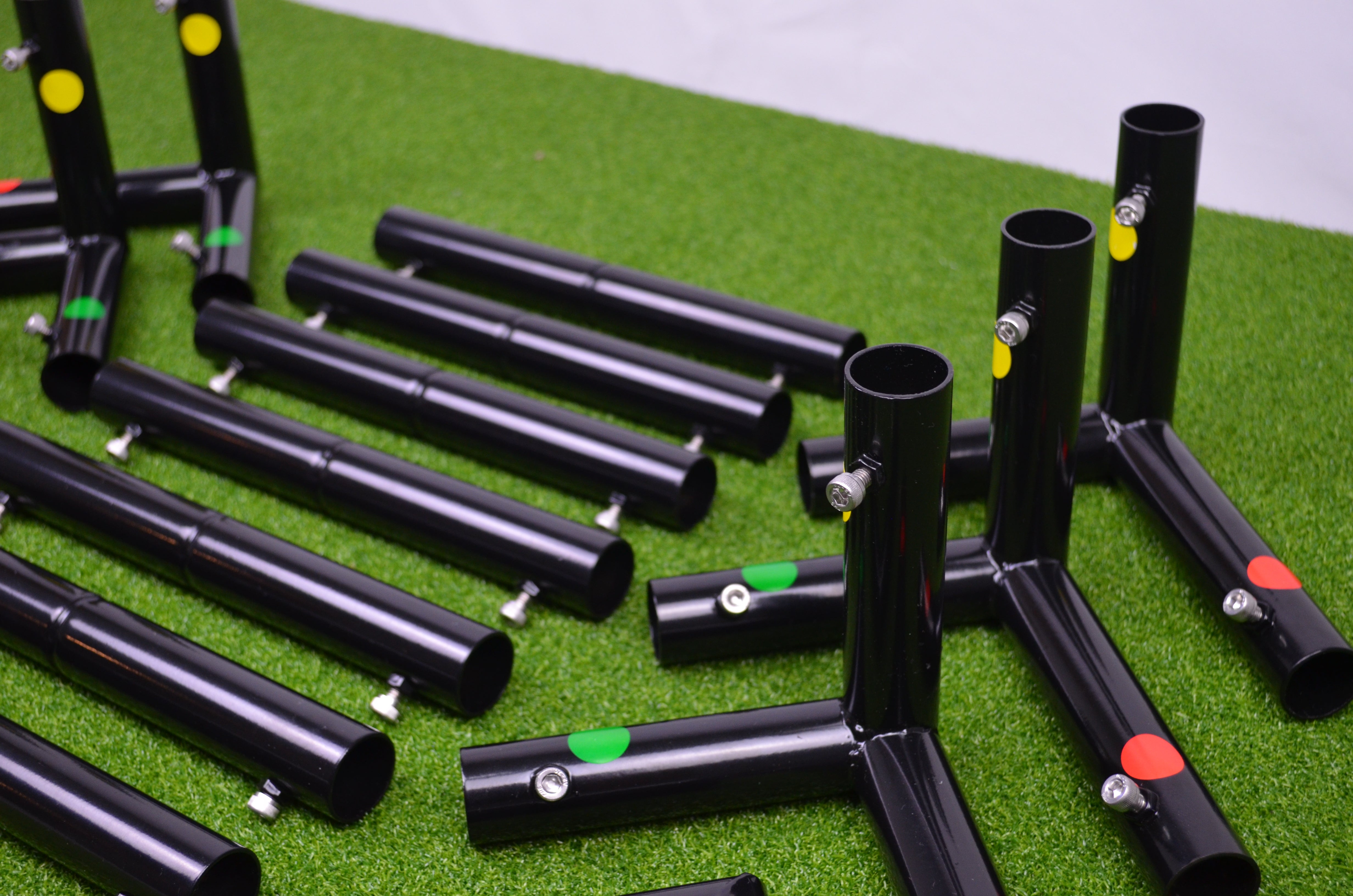
Spare Parts
On the off chance your Aussie Golf Sims product needs a new part, we’ve got a full range of spares ready to keep your setup swinging smoothly.
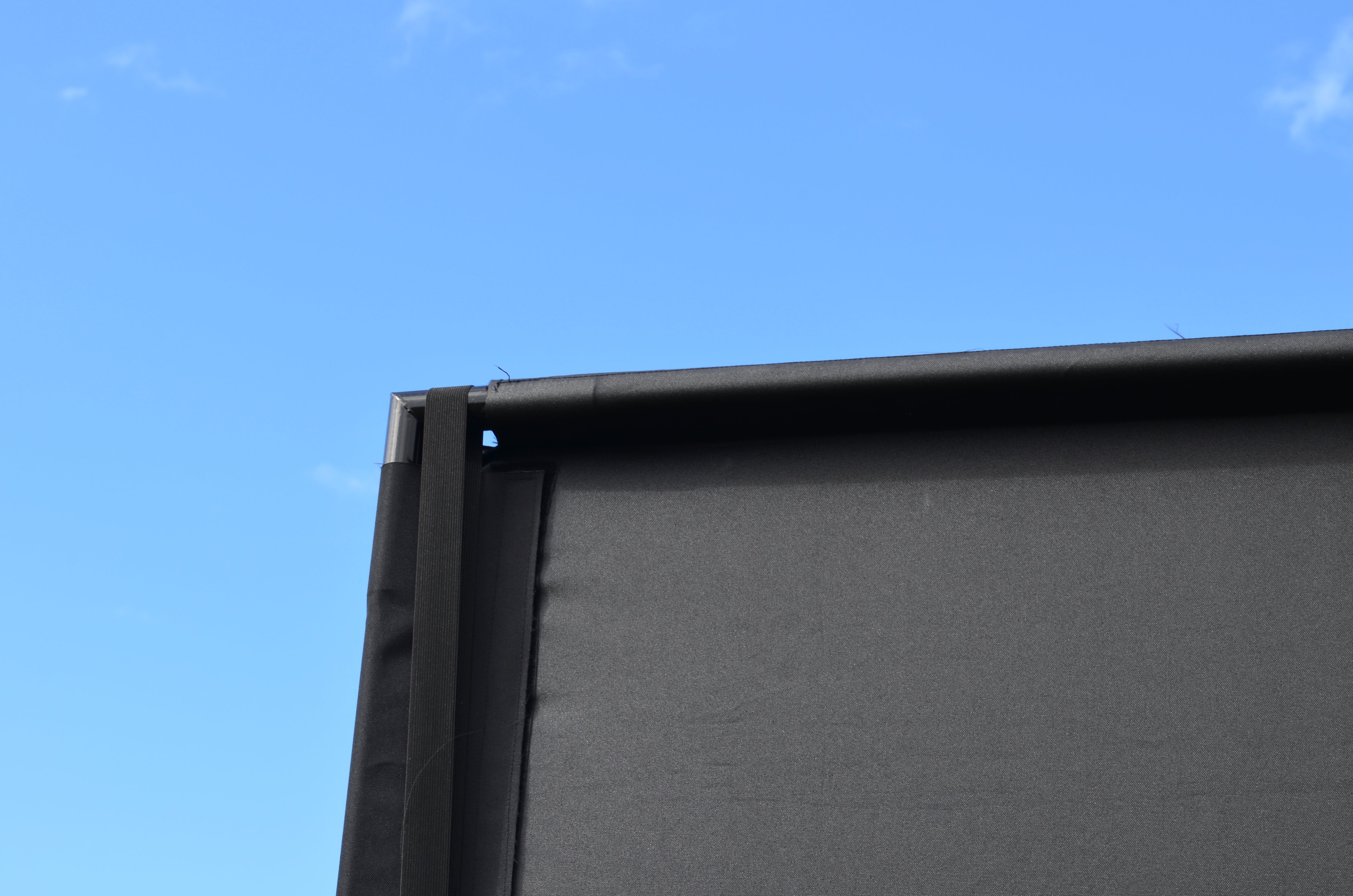
High Quality
Quality is at the heart of everything we do at Aussie Golf Sims. All of our products are built to the highest standards to ensure long-lasting performance.
Affordable
We pride ourselves on being the most affordable home golf simulator in Australia — because every golfer deserves to play, rain, hail or shine.
Customer Focused
We put the customer at the front of what we do, without you guys there is no Aussie Golf Sims, we believe in providing the best service we can, pre - post purchase.